Sharing Module
The Sharing module is a content-type module, to share an Experience with friends and followers on social media.
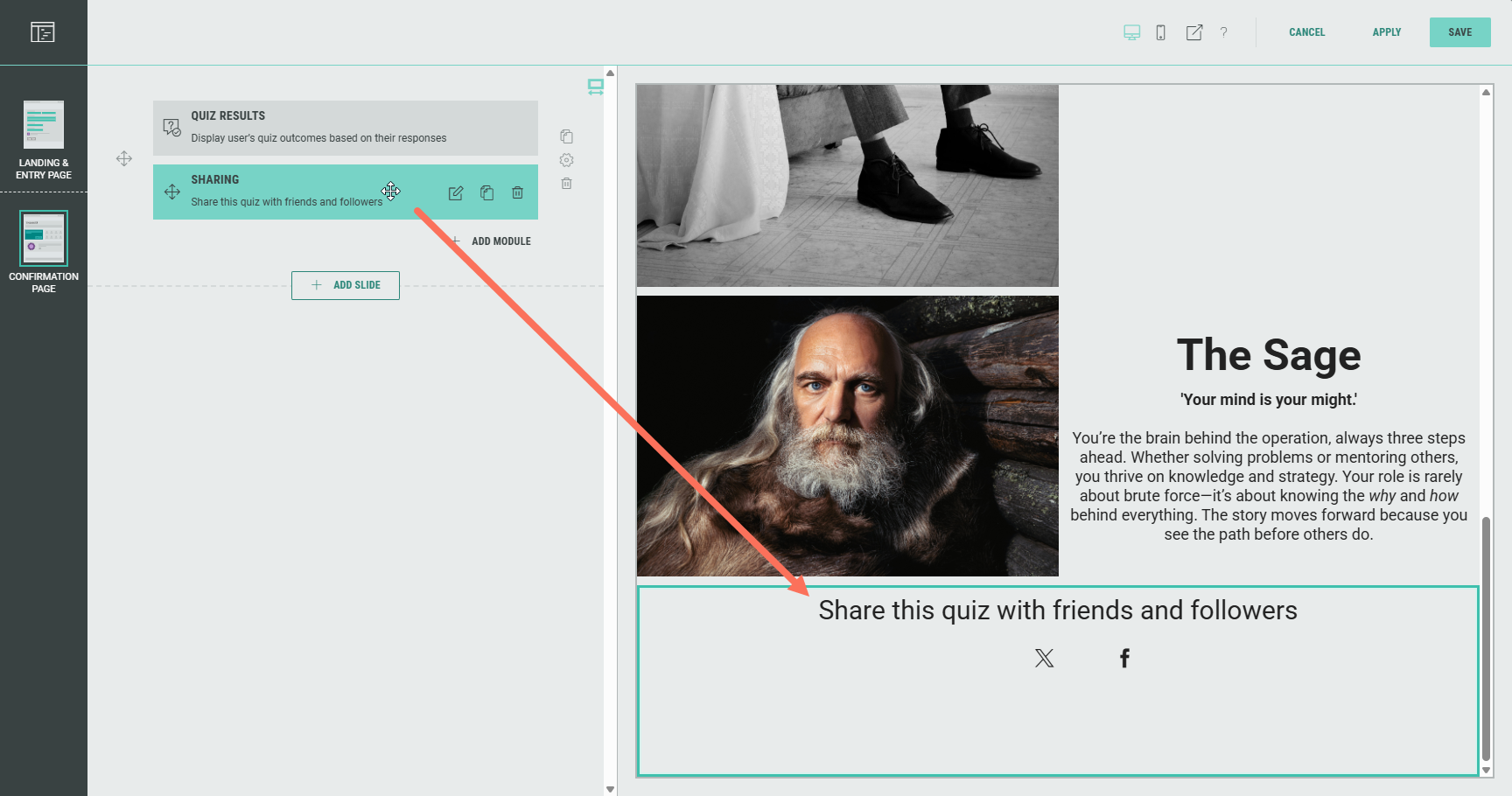
In the Page Builder, click on the pencil icon to edit the Sharing module.

In this article, as an example, we'll configure the module to share a Personality Quiz on the different social media.
Content tab
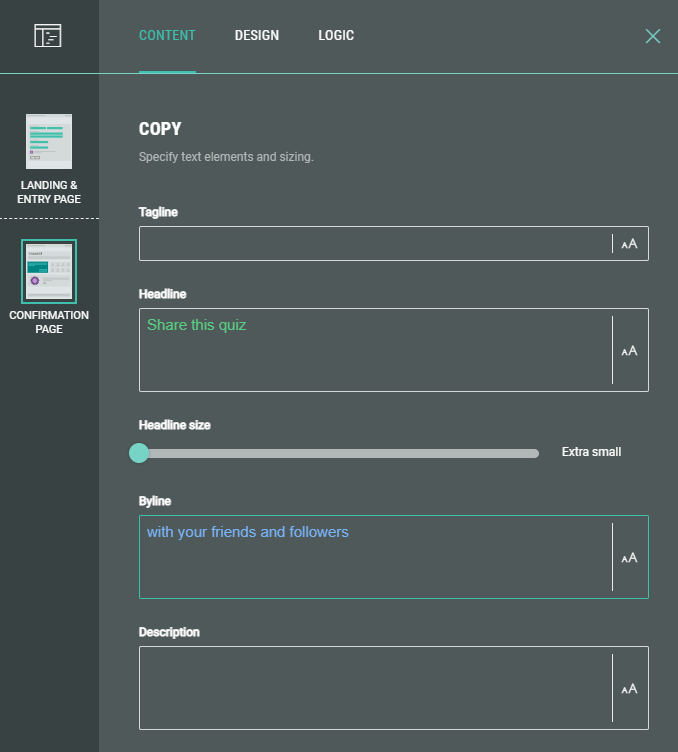
In the Copy section on the Content tab, you can add text copy, such as a headline and byline.
Then define the Sharing Settings, to customize to which social networks Experience participants can share this quiz and how the content will appear when shared.
Sharing Link
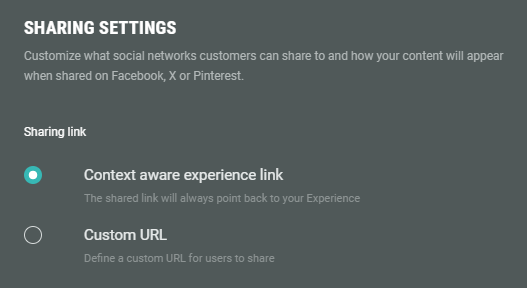
- Context aware Experience link — The shared link will always point back to your Experience.
- Custom URL — Define a custom URL to share.
- Enable the toggle if you want to show the Facebook icon, so your Experience participants can share the quiz on Facebook.
- When enabled, you can enter a title and caption and upload an image.
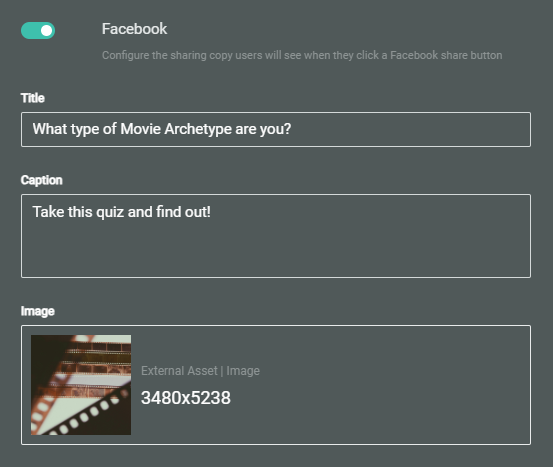
Example:
- The Facebook icon to share the quiz is visible on the Confirmation Page of the Experience.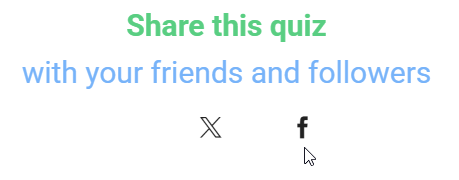
- When a participant clicks on the Facebook icon, they can create a Facebook post to share the quiz.
The title, caption and image are visible.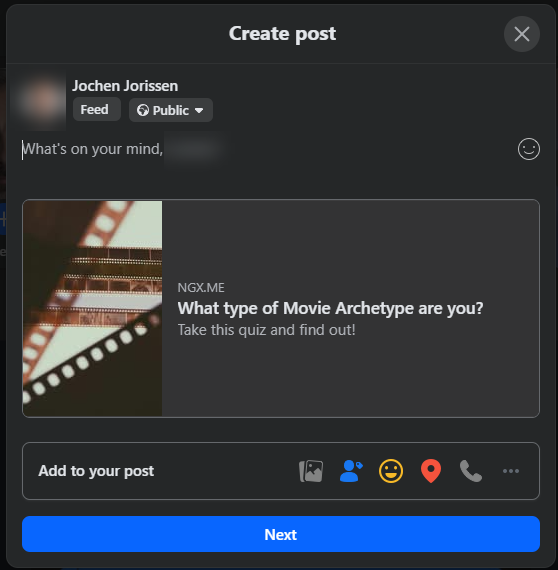
'X' (formerly Twitter)
- Enable the toggle if you want to show the X icon, so your Experience participants can share the quiz on 'X' (formerly Twitter)).
- When enabled, you can enter the message to be shown when sharing the quiz on 'X' (formerly Twitter).
The context aware Experience link to your Experience or a custom URL will be added to the end of your post on 'X' (formerly Twitter) (depending on your Sharing Link choice).
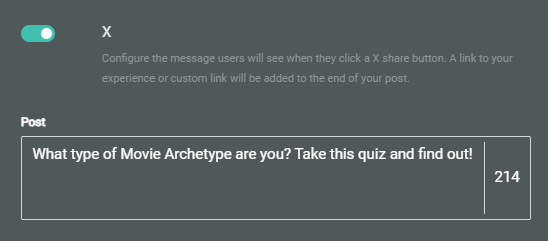
Note: 'X' (formerly Twitter) posts support up to 280 characters. We recommend keeping the message below this number if you are including a link.
Example:
- The X icon to share the quiz is visible on the Confirmation Page of the Experience.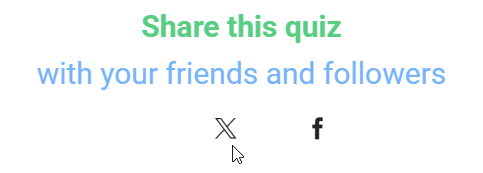
- When a participant clicks on the X icon, they can create a post on 'X' (formerly Twitter) to share the quiz.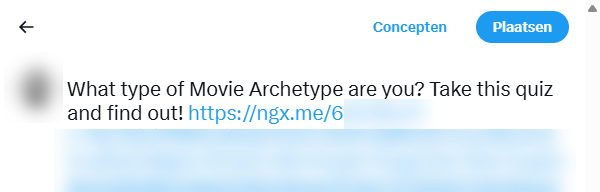
- Enable the toggle if you want to show the Pinterest icon, so your Experience participants can share the quiz on Pinterest.
- When enabled, you can enter a caption and select an image that will be shown when sharing the quiz on Pinterest.
Note: Pinterest sharing requires that you select or upload an image along with your message.
Otherwise the Pinterest icon won't be shown.
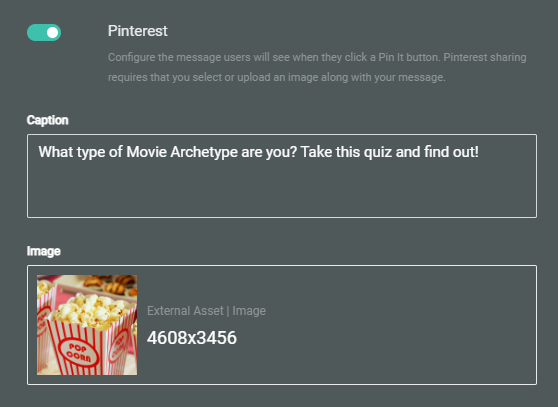
- Enable the toggle if you want to show the WhatsApp icon, so your Experience participants can share the quiz on WhatsApp.
- When enabled, you can enter a message to show when sharing the quiz on WhatsApp.
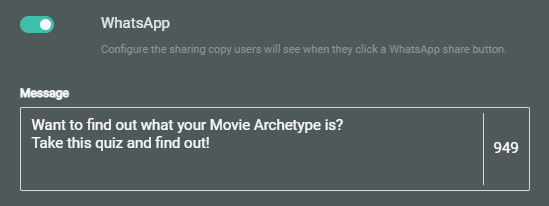
Note: There is a set character limit of 1,024.
Example:
- The WhatsApp icon to share the quiz is visible on the Confirmation Page of the Experience.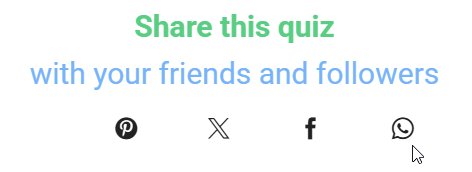
- When a participant clicks on the WhatsApp icon, they can share the quiz.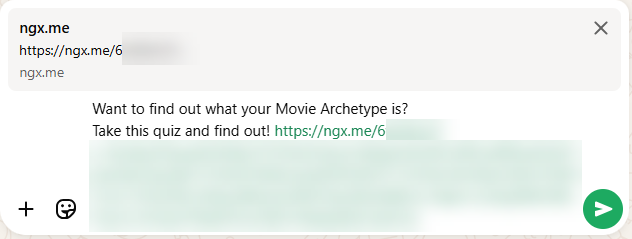
Design tab
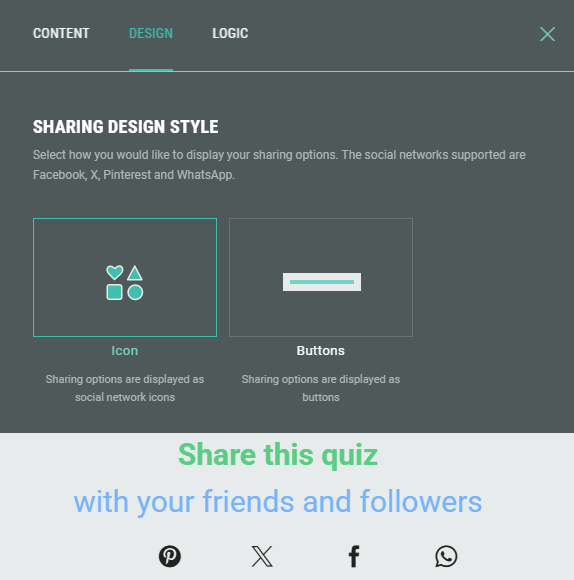
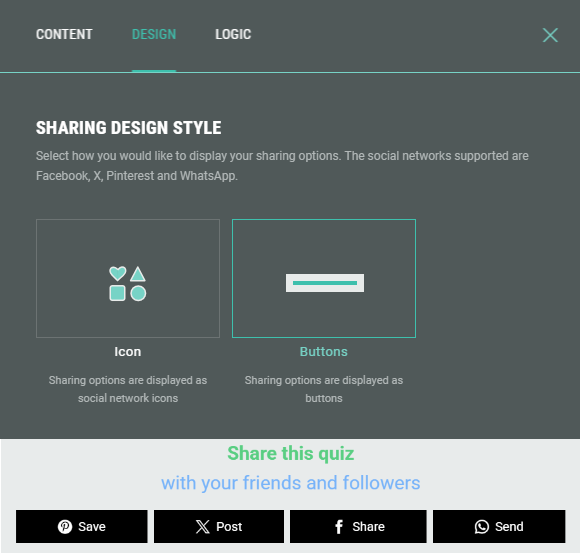
On the Design tab, select how you would like to display the social sharing options.
- Icons:
- Buttons:
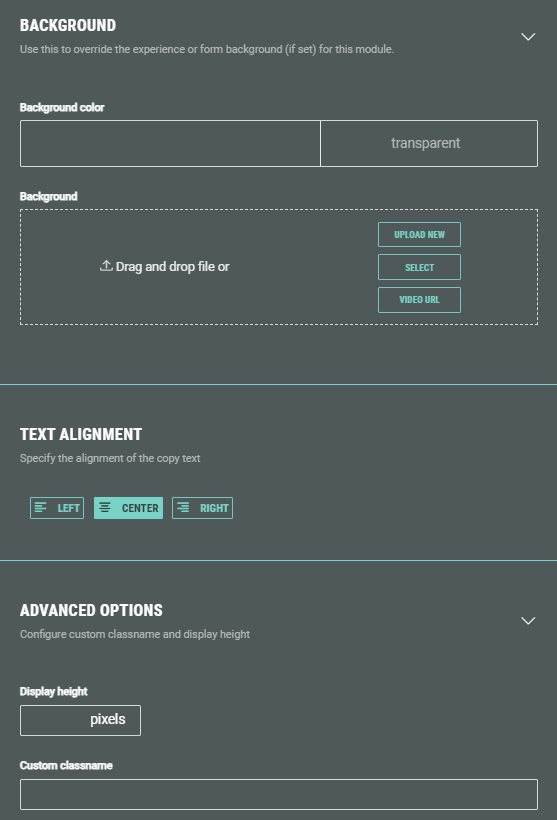
Furthermore, on the Design tab, you can set a background color or background image, define the text alignment, and/or add a custom CSS classname (only use this option when you're familiar with CSS code).
Logic tab
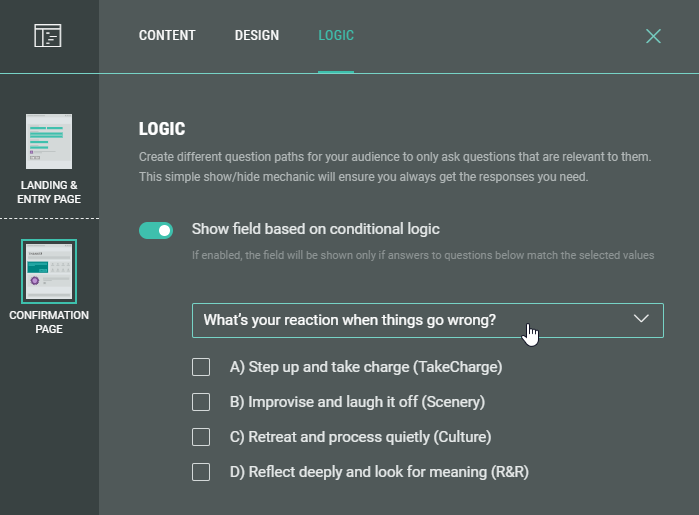
On the Logic tab, different question paths can be created for your audience.
Populate social share messages with quiz results
If you want to populate quiz results in a social share message, you can include the formulas {score} and {total} in the Sharing module message copy.
Note: This is only applicable when using the Sharing module on a Confirmation page of a Score Quiz-type Experience (such as a NextGen Challenge Quiz).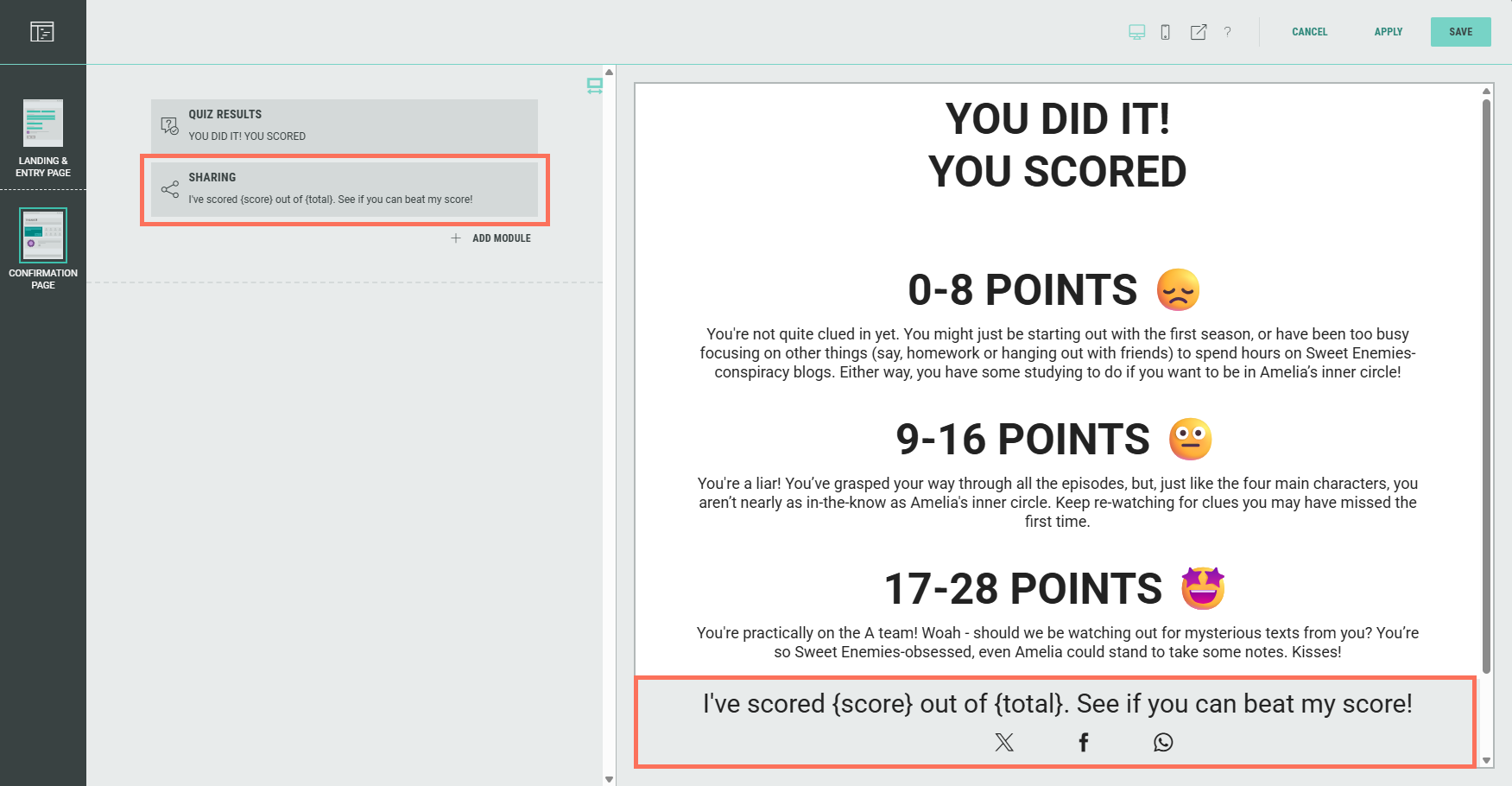
Example:
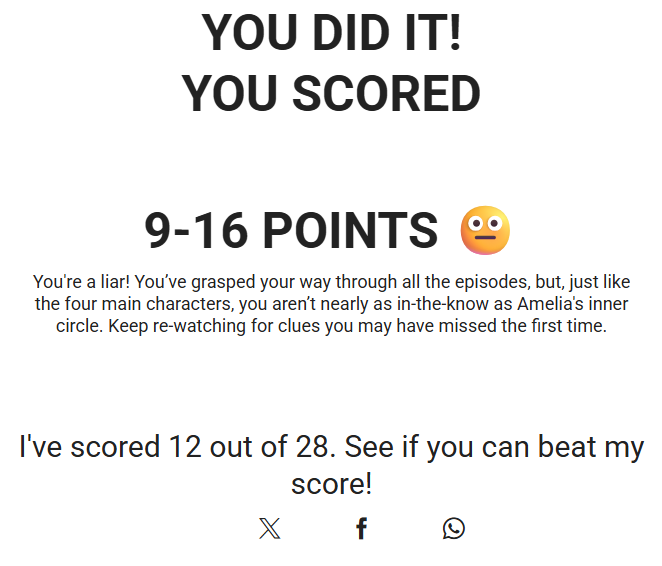
I've scored {score} out of {total}. See if you can beat my score!
The score and total will then be populated in the social post:
I've scored 12 out of 28. See if you can beat my score!